


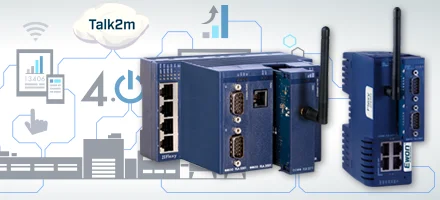
Ewon Cosy+ function changes in firmware 23.0
This document describes the most important changes to the firmware that were introduced with firmware version 23.0.
Affected products
- Ewon Cosy+ Mobile LTE EU
- Ewon Cosy+ WiFi
Links to firmware and original English documentation:
German instructions for firmware update

Technical Note Ewon 1292
Ewon Cosy+ firmware update, downgrade, restore
Version: 1.1
 Download (856 KB)
 To ensure system security, it is mandatory to update Ewon devices to the latest available firmware upon installation.
Firmware version 23.0 is specifically designed to meet the new cybersecurity requirements of the Radio Equipment Directive (RED), which come into force on August 1, 2025.
In addition to the firmware updates, you must:
- Secure physical access to the Ewon device
- Restrict LAN connections to authorized users only
- Set up access rights in Talk2m to enforce the principle of least privilege
These measures are essential for maintaining the cybersecurity integrity of your installation.
A) FTP server
Changes:
- Disabled by default
- Available on VPN and LAN interfaces; no longer available on WAN interfaces
Description:
The Ewon FTP server is now disabled by default (factory settings and after reset).
It can be enabled on VPN and/or LAN interfaces via the extended parameter 'ClosedDevice'.
Example values are provided; see(link) for details
| Behavior | ClosedDevice value |
| Close FTP server on LAN, WAN & VPN | 21 |
| Close the FTP server on LAN and VPN | 17 |
| Close the FTP server on the LAN | 1 |
| Close FTP server in VPN | 16 |
The parameter can be set using the Tabular output function under Setup > System > Memory > Tabular output > Edit COM cfg.

B) NTP server
Changes:
- Disabled by default
Description:
The Ewon's NTP server is disabled by default. To use the Ewon as an NTP relay, the NTP server must be activated manually under Setup > System > Main > Net Services > NTP server.

C) USB over IP
Changes:
- Disabled by default
- Available for VPN and LAN; no longer available for WAN interfaces
Description:
USB over IP enables access to a USB device via a Talk2m connection, which is displayed locally in eCatcher. To use this function, it must be activated manually under Setup > System > Communication > General > USBIP.


When activating, the default values for Log Level and Start Port can be retained.

Note: A link to the USBIP setup page is available on the Cosy+ overview page under the Gateway status section.
D) HTTP server
Changes:
- Available for VPN and LAN; no longer available for WAN interfaces
Description:
The Ewon HTTP server used to display the web configuration pages is no longer accessible via the WAN interface.
E) SMTP client
Changes:
- SMTP client restricted to VPN interface; no longer available over LAN or WAN (including WiFi and cellular)
Description:
The SMTP client used to send email or SMS notifications (via digital inboxes) now only works over the VPN interface using the Talk2m mail relay.
The use of a separate SMTP server is no longer supported.
F) Profinet Explorer
Changes:
- The network scan now only starts when the user clicks the Refresh button.
Description:
Previously, the Profinet Explorer started the scan automatically when the page was opened. Now the scan must be started manually by clicking the Refresh button.
Path: Setup > System > Main > Network services > Profinet Explorer


G) DynDNS
Changes:
- No longer supported.
Description:
The DynDNS function (dynamic DNS) has been removed from the Ewon device.
Authentication logs:
The Ewon device now logs successful and failed login attempts across all its different configuration interfaces (web server, EBD, FTP server, etc.)
Example EventLog messages:
| Time | Event | Event Description | Source |
| 15/06/2025 23:10 | -21305 | eftp-opens FTP session (user: Adm) | ftps |
| 15/06/2025 23:13 | -28611 | secu authentication failed (from FTP server) | ftps |
| 15/06/2025 22:51 | -28611 | secu authentication error (from WEB server) | http |
| 15/06/2025 22:51 | -21020 | east user has logged in to the web interface of the device (adm) | http |
Logs for the use of data protection assets:
Logging has been added to track the configuration and use of privacy assets (e.g. email and SMS). The log records when values are configured and when they are used.
Example EventLog messages:
| Time | Event | Event Description | Source |
| 15/06/2025 22:22 | 1073788325 | cfgw-The COM configuration was changed | http |
| 15/06/2025 22:23 | -34559 | ecfg-The default password for the administrator has been changed | http |
| 15/06/2025 23:18 | -34560 | ecfg-Privacy parameter of the COM configuration has been changed (DI1AlarmEmailRecipients) | http |
| 15/06/2025 23:18 | 1073780230 | di-WAN connection PREVENTED by changing the digital input | http |
| 15/06/2025 23:21 | 1073780233 | di-Sending of e-mail(s) to configured address(es) due to an event at the digital input (1) | esyncitf |
| 15/06/2025 23:24 | 1073780234 | di-Sending of short messages to configured phone number(s) due to an event at the digital input (2) | esyncitf |
Buffer for the Privacy Asset Log (PAL):
A persistent Privacy Asset Log (PAL) has been implemented to fulfill RED requirements and ensure that PrivacyAssetEvent logs are preserved even after a reboot.
A new export block descriptor (EBD), dtPAL, allows all log entries to be downloaded to a single file without deleting them.
EBD syntax example: http://#deviceIP#/rcgi.bin/ParamForm?AST_Param=$dtPAL$fnLogText.txt
Example of the content of the PAL log:
2025-05-27 12:19:18;1342215689;di-Sending email(s) to configured address(es) due to a digital input event (1)
2025-05-27 12:04:23;-268470016;ecfg-Privacy parameter of the COM configuration was changed (DI2AlarmSMSRecipients)
Note: The PAL saves events in three rotating log files, which are located in /usr/PALog/ and are each up to 0.3 MB in size. Older files are automatically deleted to comply with the storage limits.
Device configuration via FTP:
The FTP server is deactivated by default and must first be activated via the graphical user interface (table editor). If it is activated via the LAN interface, it must be deactivated after use unless the physical and LAN access is secured.
Alternatively, the configuration can also be used via a USB stick.
Backup / restore (eBuddy):
Backup and restore via eBuddy is carried out via the FTP server, which must first be activated via the GUI. If the FTP server was activated via the LAN interface, it must be deactivated after use unless physical and LAN access is secured.
Remote access to USB devices:
As the USB-over-IP function is disabled by default, you must first enable it on the Ewon device before you can remotely access the connected USB device.
A link to the USB over IP setup page is available on the Cosy+ overview page under the Gateway status section.
 to top
 Contact
 Request form